How to Do a Reverse Image Search
To do a reverse image search, upload the photo to Google Lens, Bing or TinEye: they show you where that image, or one close to it, has already appeared online. It helps you find out whether the photo on a profile, a listing, a rental or a fundraiser was used somewhere else first. The result is a clue, not a verdict: finding no copies does not prove the image is genuine, and finding copies does not prove the person is lying.

What a reverse image search is for
In a reverse image search you search with a picture instead of words. The search engine looks for other pages using the same photo, or images that look like it. It helps with situations like these:
- A dating or social media profile that gets close quickly and, a few weeks in, starts talking about money. The photos may belong to a different person, under a different name, in a different country.
- A rental or a for-sale listing with a good price and a deposit requested before any walkthrough. The photos may have come from a listing for a different property, sometimes in another city. The FTC’s guidance on rental listing scams says to see the place yourself, or at least get a live video tour, before you send any money.
- A fundraiser or a plea for help showing someone in the hospital or a house destroyed by a storm. The same photo may have run before, in another campaign, attached to another story.
The result does not declare anything true or false. It gives you context: where the image showed up before, under which names, on what dates, and tied to which stories. The FTC gives the same advice about dating profiles in its guidance on romance scams: do a reverse image search of the profile picture and see whether it comes back with a different name or details that do not match.
How to search from a computer
- If the image is on a site open in Chrome, right-click it and choose Search with Google Lens. The results open in a panel beside the page.
- If the image is saved on your computer, open google.com and drag the file into the search box.
- If you only have the image address, open Search by image on google.com, paste the link into the field for an image link, and search.
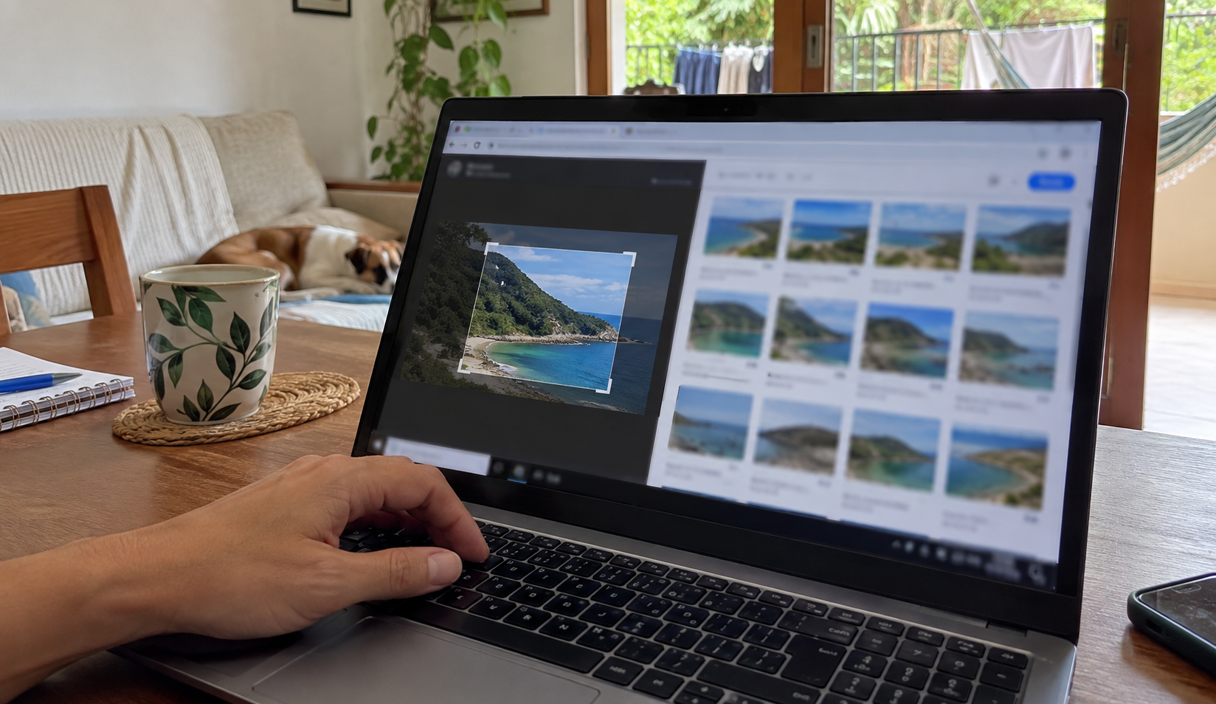
- Search the whole picture first. Then, if there are several objects or people in it, select a smaller area and search again.
These steps follow the official Google Search help page, checked on September 22, 2026. Button names can change with the browser and the version.
How to search from your phone
In the Google app or in Lens, pick a photo from your camera roll. In browsers that support it, you can also hold your finger on an image and search for it directly. Button names change with the device and the app version.
If the photo is inside a screenshot, crop out the borders, the text and the buttons before you search. Always start with the whole photo, because that is usually how it appears on other sites. If nothing comes back, try crops: in a listing, the main object and then one detail; in a profile, just the face, without the rest of the screen.
Repeat the search in Bing and TinEye
Each search engine keeps its own collection of images from the web. A photo that Google cannot find may turn up somewhere else, and the reverse happens too. When money is involved, it is worth repeating the search in at least one more service.
Microsoft’s Bing Visual Search lets you drag an image onto the page, paste a copied image, or choose a file. The result shows similar images and the sites where they appear.
TinEye works the same way: you upload the file, paste the image, or paste its address. The difference that helps most here is the ordering. In the “Sort by” menu, choose “Oldest” to see the earliest copies TinEye found. TinEye explains that this date is when it found the image, not when the image was published, but it is a good starting point for tracing back to the earliest posting.
Google’s About This Image
Google has a feature called About this image, which gathers information about a photo found online. According to Google’s help page, it can show when Google first saw the image or one like it, other pages using the same photo, and a section on early uses, with pages where it appeared well before the rest.
When a site stores that information, the feature can also say whether the image was taken with a camera or generated with artificial intelligence. Google itself warns that this data can be altered by editing software, and the feature is not available in every region yet.
How to compare the results
Look for the oldest posting you can find. Compare the name, the city, the date, the description and the quality of the image. The same photo attached to different people, or to listings far apart from each other, can mean it was copied.
An example
A family looking for a beach rental for a long weekend finds a listing with a deck facing the water and a price below everything else. The owner answers quickly and asks for half the rent up front through a payment app to hold the dates. Before paying, the daughter searches the photo of the deck in TinEye and sorts by oldest: the same image appears two years earlier on the site of an inn in another town. The family does not send the money.
A photo from a stock library does not by itself prove the whole listing is fake, but it does show that the picture is not necessarily of the product or the person being presented. In news items, look for the original source and the date, because old photos come back with new captions.
Images made by artificial intelligence
Software can produce, in seconds, the photo of a person who does not exist, a house that was never built, or a product nobody manufactures. An image like that is new, so it appears nowhere else, and the reverse search comes back empty.
That is why an empty search does not mean the photo is real. A dating profile whose photos appear nowhere could belong to a real and private person or to someone who does not exist at all. What helps in those cases is confirming the person or the company some other way, such as a video call or a visit to the property before any money changes hands.
What the search cannot prove
Not finding another copy does not make an image authentic. It may be new, private, heavily edited, or simply not in the results yet. The reverse holds too: legitimate photos can appear in many places when the company or the press distributed them.
Use the search as one part of the work. For a purchase or a rental, see how to check if a company is legitimate and look at the name of whoever will receive the money. For a person, talk on another channel, and do not send money just because the photo did not turn up anywhere else. Scams built on trust that grows slowly are explained in what social engineering is.
If you already sent money and then found the photos belonged to someone else, call your bank right away and say the payment was fraudulent. A card charge can often be disputed; an instant transfer, a wire or a payment app transfer is much harder to pull back, and the steps are in what to do after an instant payment scam. The FTC page on what to do if you were scammed goes method by method through what is still possible. You can also report it to the FTC at ReportFraud.ftc.gov and to the FBI’s Internet Crime Complaint Center.
Be careful with the photos you upload
When you run a reverse image search, you hand the picture to an outside service. Do not upload an intimate photo, an identity document, or a picture of another person, especially a child, to a site or app you do not know. Stick to well-known services and read what each one says about the images it receives: TinEye states that it does not save or share the image you search, and Google says it may keep the image addresses you search to improve its own services.
Reverse image search FAQ
The search found nothing. Does that mean the photo is genuine?
No. A picture can come back empty because it is new, because it was only posted somewhere a search engine cannot reach, because it was cropped or edited enough to look different, or because software produced it. An empty result means you have not learned anything yet, not that the photo checks out. Confirm the person or the company another way before any money moves.
Which service should I try first?
Start with Google, which has the widest reach, then repeat the search in Bing Visual Search or TinEye. Each service keeps its own collection of images, so a photo that one cannot place can turn up in another. When money is involved, it is worth doing at least two.
Can I search a photo somebody sent me in a message?
Yes. Save the image or take a screenshot, then crop away the borders, the app buttons and the text around it, so that what you search is the photograph itself. Search the whole picture first, because that is usually how it appears on other sites, and try a smaller crop only if nothing comes back.
Will the person who posted the photo know that I searched it?
No. The search goes to the search engine, not to whoever posted the image. What does deserve care is the other direction: you are handing the file to an outside company, so do not upload an intimate photo, an identity document, or a picture of another person, above all a child.
I found the same photo under a different name. What do I do now?
Treat the photo as unconfirmed and stop any payment. There is little to gain by confronting the account, which mostly tells whoever runs it to change pictures. If the photos belong to a real person, that person is having their images used without knowing it. You can report the profile inside the platform and report the attempt to the FTC at ReportFraud.ftc.gov.
Can I find out when a photo was first published?
Not exactly. TinEye’s Oldest sort shows the earliest copy it has on record, and TinEye is clear that this is the date it found the image, not the date the image was published. Google’s About this image can show when Google first saw a photo and can flag pages that used it well before the rest. Both give you a direction to trace back, not a publication date.
Sources
The steps and features described here were checked on September 22, 2026 on these pages:
- Google: search with an image on your computer
- Google: learn more about an image
- Microsoft: Bing Visual Search
- TinEye: frequently asked questions
- Federal Trade Commission: what you need to know about romance scams
- Federal Trade Commission: rental listing scams
- Federal Trade Commission: what to do if you were scammed
- Federal Trade Commission: ReportFraud.ftc.gov
- FBI Internet Crime Complaint Center
Keep reading

Romance Scams: Warning Signs, What to Do, and How to Help Someone Involved
How the relationship is built, where the money request appears, and how to talk to someone still inside it.
9 min readRead

Rental Scams: How to Check a Listing Before Paying a Deposit
How to verify who owns a property, why a deposit before a walkthrough is the warning, and what to do if you paid.
9 min readRead

Marketplace Scams: How to Buy and Sell Without Losing Money
The overpayment, the off-platform payment, and the meeting rules that protect a private sale.
9 min readRead